


Love This Blog? Sign Up for Our Newsletter for More
SignupSpeed to Lead in Salesforce: How PhoneBurner Sync Gets New Leads Into a Call Queue in Seconds

Table of Contents
Summary
PhoneBurner's latest Salesforce app update introduces PhoneBurner Sync, a tool that automatically pushes records from Salesforce into PhoneBurner based on rules you define. No Zapier. No custom code. No manual exports. This is what unlocks true speed-to-lead for Salesforce teams: new leads land in an active call queue in seconds, ready for the next available rep. This guide covers how it works, what it enables, and how to set it up.
PhoneBurner's latest Salesforce app update introduces PhoneBurner Sync, a tool that automatically pushes records from Salesforce into PhoneBurner based on rules you define. No Zapier. No custom code. No manual exports.
This is what unlocks true speed-to-lead for Salesforce teams. When a new lead comes in with the right field value, it's:
- In a PhoneBurner call queue within seconds
- Automatically prioritized as the very next call
This makes it easier than ever for Salesforce teams to dial new leads during the window where the odds of making contact are highest. Read on to learn more about PhoneBurner Sync or see our full Salesforce dialer integration.
Remove the Human Bottleneck for True Speed-to-Lead
Speed-to-lead is a priority for every sales team. And for good reason. The faster you reach out to a new lead, the more likely you are to connect, beat the competition, and win the deal.
But speed-to-lead breaks down when humans need to be involved. Someone has to notice the new lead came in. A rep has to wrap up a call, finish a follow-up email, grab a coffee, or get through their current queue. By the time someone gets to it, minutes have passed. Sometimes hours.
The fix isn't better reps. It's removing the dependency on rep behavior entirely.
That's what PhoneBurner's LeadStream was built for: a shared, auto-replenishing call pool a team of reps simultaneously works out of. Whoever is actively dialing picks up the next record. PhoneBurner Sync takes it further by bringing real-time leads into the pool and slotting them at the top of the list, automatically.
What PhoneBurner Sync Does
PhoneBurner Sync is a new tool inside the PhoneBurner Salesforce app that pushes records from Salesforce into PhoneBurner automatically. Admins define the rules:
- Which object to sync
- Which fields to map
- Which field values trigger the sync
- Which PhoneBurner folder records land in
From there, it runs on its own. No exports, no Zapier, no custom development work.
The sync supports Leads, Contacts, Accounts, and Custom Objects (one object at a time). Sync rules are field-value based, so you can route records based on whatever signals matter to your team:
- Lead status
- Contact stage
- Campaign membership
- Priority score
- Any custom field you've built into your Salesforce instance
Sync is one-way (Salesforce to PhoneBurner), though reps can edit records live in Salesforce through the embedded iframe while dialing.
Once records are in PhoneBurner, they can be placed into a LeadStream folder for shared, real-time dialing, or into a standard folder for a more traditional list-based session. We recommend keeping the Salesforce iframe enabled while reps dial; it surfaces the full Salesforce record inside PhoneBurner, lets reps update fields directly in Salesforce, and means you don't need to sync extra fields just for context. Calls, dispositions, notes, and outcomes log back to Salesforce automatically.
This also closes a gap that's existed in the PhoneBurner Salesforce workflow: you no longer have to choose between dialing from Salesforce and dialing from PhoneBurner. Reps can still launch dial sessions directly from Salesforce lists, reports, contacts, leads, and custom objects like they always have, and now they can also launch LeadStream sessions from PhoneBurner against records that originated in Salesforce. Both workflows live side by side.
How PhoneBurner Sync Changes Your Workflow
Here's the full chain in action:
- A new lead fills out a form on your website.
- The record is created in Salesforce with a field value that matches a sync rule (e.g., Lead Status = "New").
- PhoneBurner Sync pushes the record into the designated PhoneBurner folder.
- If that folder feeds an active LeadStream, the record becomes the next call for whoever is dialing.
The whole sequence runs in seconds. Watch the video below to see it in action.
How to Setup the PhoneBurner Sync
Setup happens inside Salesforce, in the PhoneBurner Lightning App under the PhoneBurner Sync Settings tab. It's a guided, multi-step process, something your Salesforce admin will want to handle once, then leave running. Here's the shape of it:
- Connect Salesforce to PhoneBurner. Configure a named credential in Salesforce using a personal access token generated from your PhoneBurner account. This authorizes Salesforce to push records into PhoneBurner.
- Choose your object. Pick the Salesforce object you want to sync: Leads, Contacts, Accounts, or a Custom Object. One object per setup.
- Map your fields. Choose the primary phone number field, plus any additional fields you want to send over (first name, last name, email, address, etc.). Keep it lean as most of what your reps need lives in the Salesforce iframe.
- Define your sync rules. Set the field-value conditions that trigger a sync, and the PhoneBurner folder records should land in. A typical setup might route Lead Status = "New" into a LeadStream folder, and Lead Status = "Working" into a standard follow-up folder.
- Create Salesforce flows. Build one flow for record creation and one for record updates, both triggered by the field you're monitoring. These tell Salesforce to actually run the sync when records are created or changed.
- Enable LeadStream dialing in PhoneBurner. Inside PhoneBurner, go to Integrations → Salesforce and turn on LeadStream dialing for the synced object. This lets reps launch LeadStream sessions against your Salesforce records.
Once it's running, new records show up in PhoneBurner within seconds of being created or updated in Salesforce. And if the sync rules match, they’ll be added to the appropriate LeadStream so they’re called next.
Here is the full setup walkthrough with every click, field name, and gotcha.
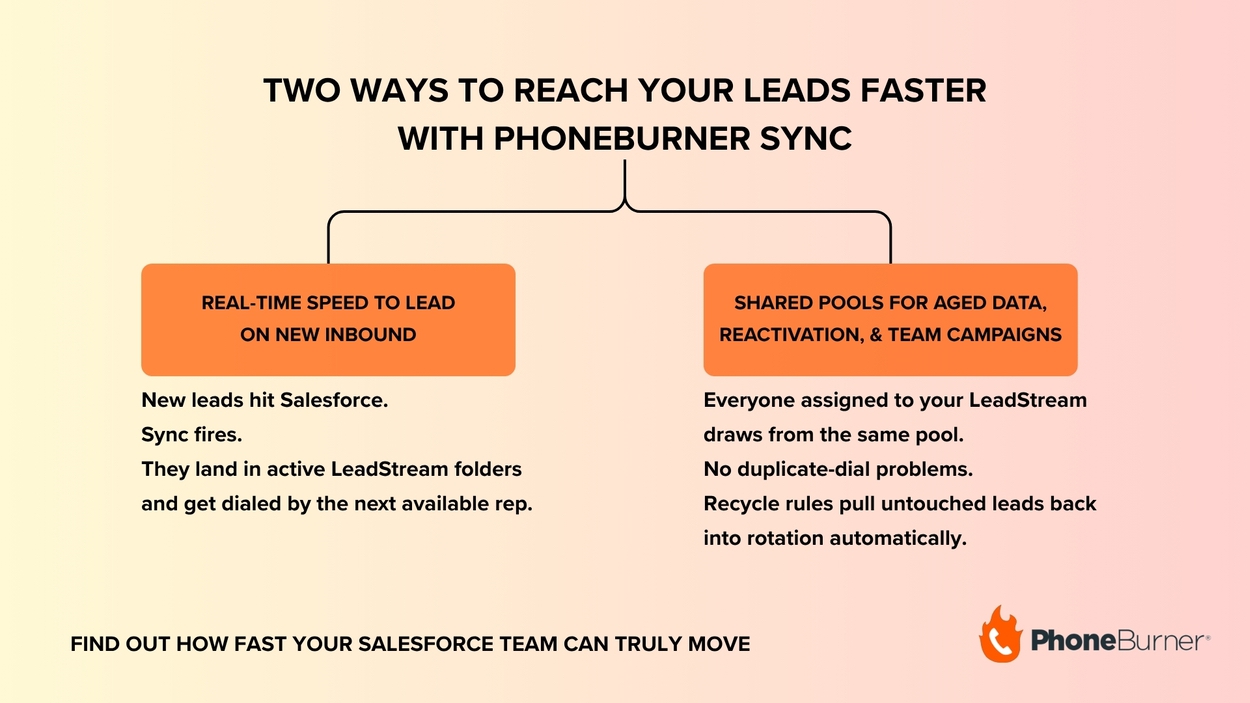
Two Ways to Reach Your Salesforce Leads Faster
PhoneBurner Sync opens up two distinct ways for Salesforce teams to work their data faster. Most teams will end up using both.
1. Real-Time Speed-to-Lead on New Inbound
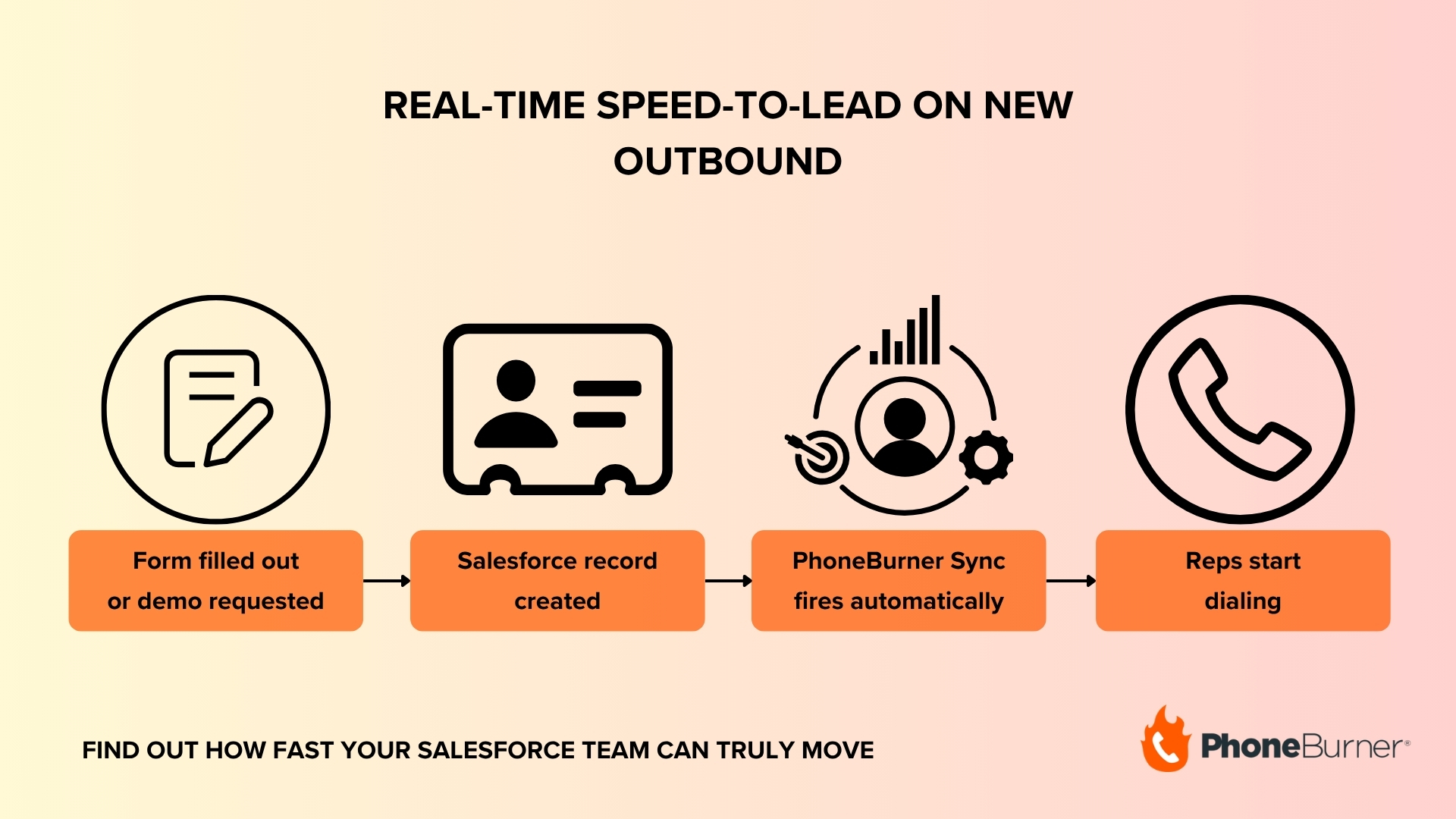
The headline use case. A prospect fills out a form, requests a demo, or downloads a resource. The record hits Salesforce, the sync fires, and the lead lands in a LeadStream folder that's actively being dialed. The next available rep gets them, often within seconds of submission.
This is where the five-minute rule actually becomes operational. You're not asking reps to monitor their inbox, watch a list view, or react to a Slack alert. The lead is just there, queued up as the next call, the moment they wrap their current one.
Read Next: How to Streamline Lead Follow-Up with PhoneBurner
2. Shared Pools for Aged Data, Reactivation, and Team Campaigns
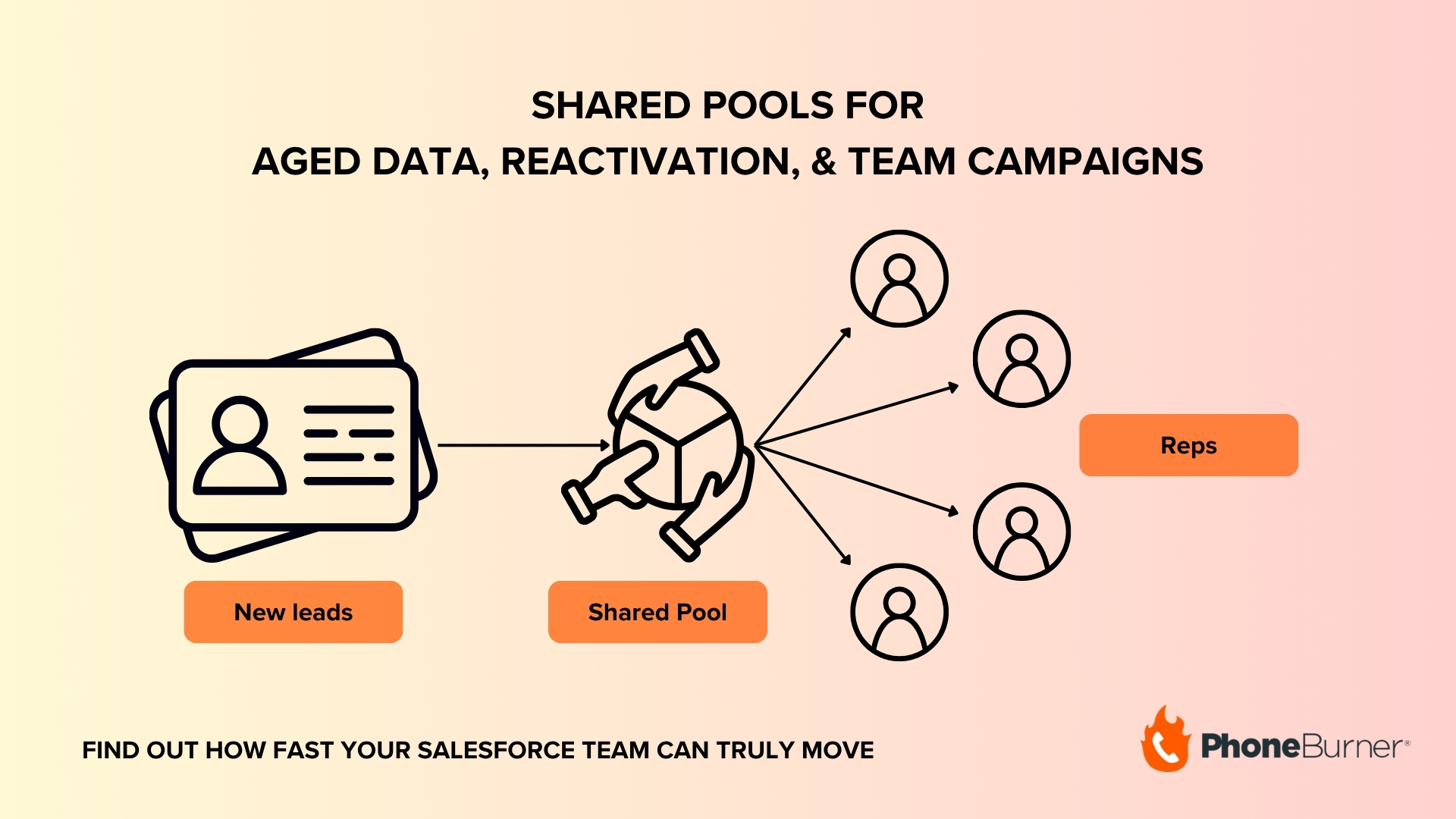
The other use case is anything that involves a team working through a pool of records together. Aged leads. Cold reactivation lists. Old customers worth a callback. Lists that no individual rep owns, but that the whole team should chip away at.
Without LeadStream, this means manually assigning records, splitting lists, or running into duplicate-dial problems when two reps grab the same contact. With PhoneBurner Sync feeding records into a LeadStream folder, the assignment disappears. Everyone (that you assign to the LeadStream, that is) draws from the same pool, no one steps on each others’ toes, and recycle rules pull untouched records back into rotation automatically.
It's the difference between handing every rep a stack of cards and putting one shared deck on the table.
Related: How to Better Manage Your Sales Leads
Frequently Asked Questions
How do I improve speed to lead in Salesforce?
Speed to lead improves when you remove the human steps between a lead arriving and a rep dialing it. The fastest setup uses an automated trigger that pushes new Salesforce records into an active call queue the moment they're created, such as the PhoneBurner Sync for Salesforce. When a new lead enters Salesforce with the right field value, it can be pushed into a PhoneBurner LeadStream within seconds and becomes the next call for whoever is dialing.
What is PhoneBurner Sync for Salesforce?
PhoneBurner Sync is a tool inside the PhoneBurner Salesforce app that pushes records from Salesforce into PhoneBurner automatically, based on field-value rules you define. It supports Leads, Contacts, Accounts, and Custom Objects, and lets you route records into specific PhoneBurner folders — including LeadStream folders for shared, real-time team dialing.
Do reps dial from Salesforce or from PhoneBurner?
Both, depending on the workflow. Reps can still launch dial sessions directly from Salesforce objects — the standard PhoneBurner Salesforce integration. With PhoneBurner Sync, admins can also move specific records into PhoneBurner to power shared lead pools, near-instant speed-to-lead routing, and custom call campaigns. The two workflows live side by side.
Do I need Zapier or custom code to sync Salesforce records into PhoneBurner?
No. PhoneBurner Sync is built into the PhoneBurner Salesforce app. Setup is handled inside Salesforce by an admin, using native Salesforce flows and a connection to PhoneBurner. No third-party tools or custom development required.
What is PhoneBurner LeadStream?
LeadStream is PhoneBurner's lead distribution engine. It automates how leads get to your team, with multiple routing methods to fit different sales processes, including shared pools where reps draw from a common queue, real-time alerts where the first rep to claim a new lead gets it, and round-robin rotation. Admins set the rules for who participates, how many leads each rep can receive, and when uncontacted leads return to the queue. Learn more about LeadStream →
Reach Your Salesforce Leads Faster than Ever
Speed-to-lead isn't a strategy problem; it's a systems problem. The teams with the fastest response times aren't necessarily putting in more effort. They've just removed the friction between when a new lead arrives and when one of their reps dials.
PhoneBurner Sync closes that gap for Salesforce teams. New leads land in an active call queue in seconds, reps work from a shared pool without stepping on each other, and every call, note, and outcome logs back to Salesforce automatically. If your current workflow still depends on someone noticing a new lead and acting on it, there’s never been a better (or easier) way to modernize.
Install the latest PhoneBurner Salesforce app and set up PhoneBurner Sync to find out how fast your team can actually move.
Send this article to someone who’d like it.
Make your outreach more profitable with PhoneBurner
Start Free TrialTable of Contents


